Changing your show cover image is very simple, just follow these steps:
- Sign in to your RSS.com account
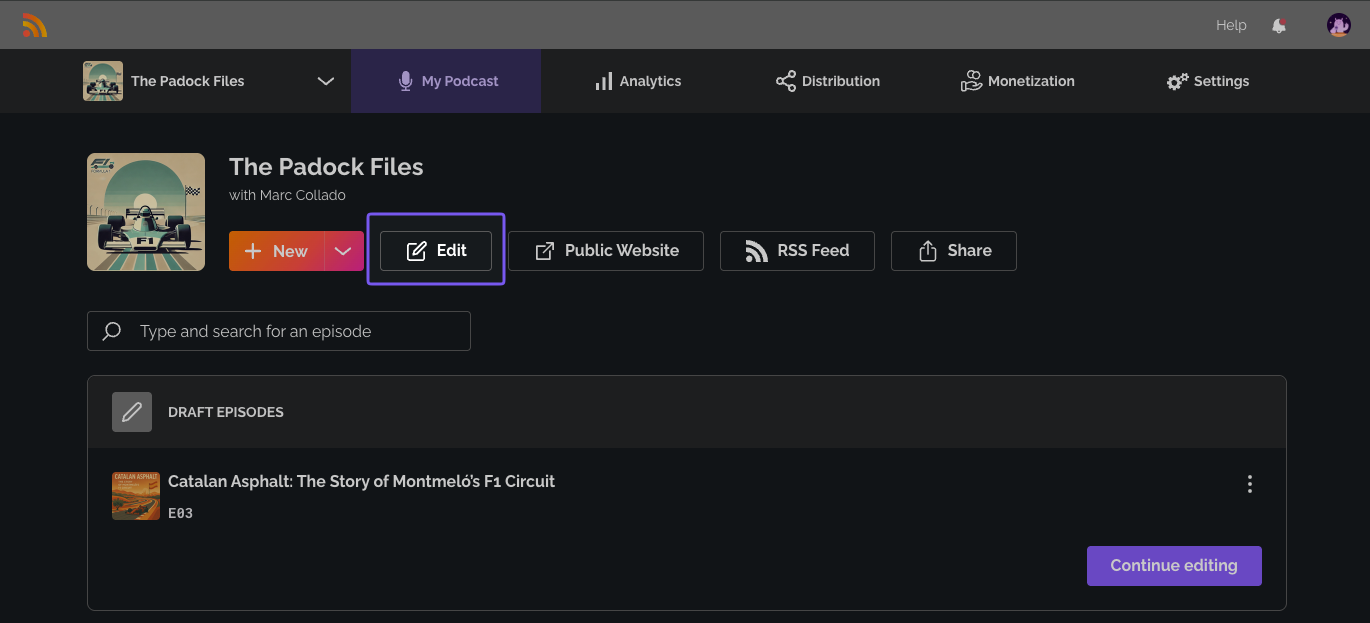
- Go to your Dashboard and select "My Podcast"
- Select "Edit"
4. In the "Cover art" section click on "Change Cover" to update your cover art, select your cover art from your files.
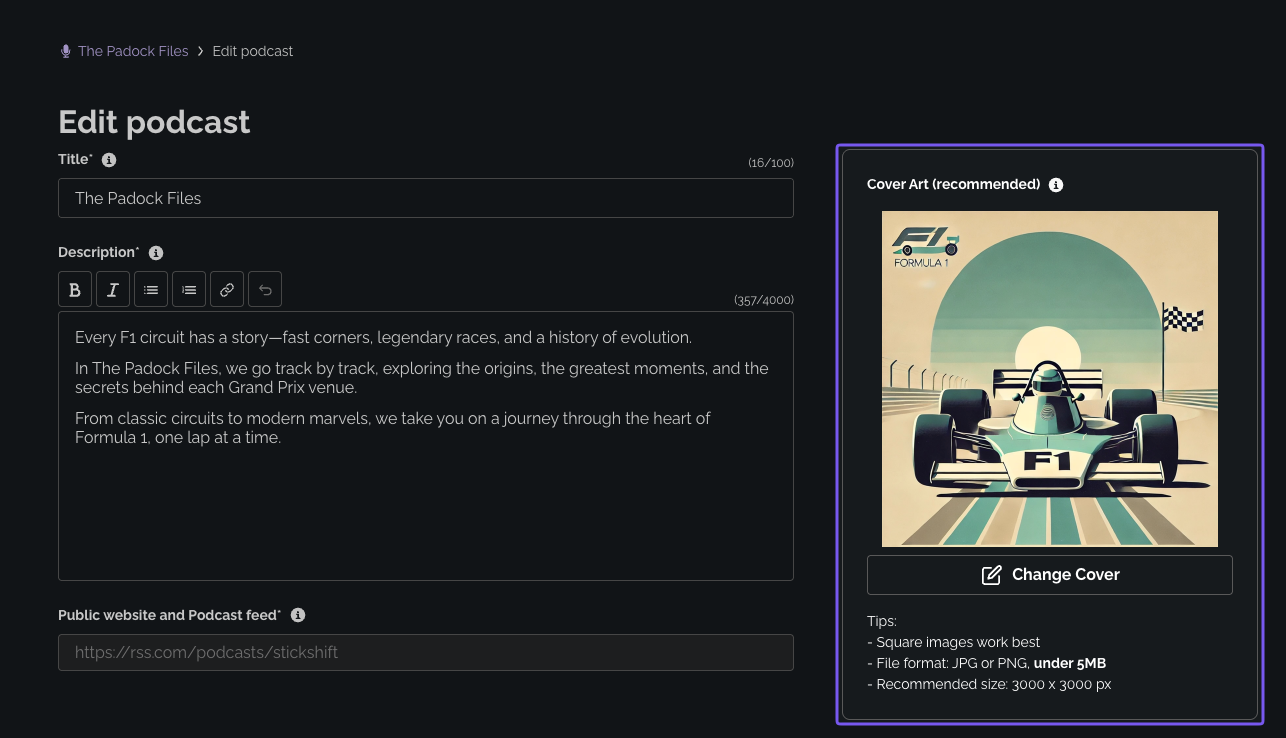
The image file needs to:
- Have a square shape
- Be a .JPG or .PNG, up to 5 MB
- Be between 1400x1400 and 3000x3000px (3000x3000 is ideal)
If it isn't, the uploader flags the image. Click Fix it for me to square and resize it, or upload a different one. You can't save until the image is fixed or replaced.
5. Click "Save" to publish your new cover image

Related: Episode art formatting requirements · Why your cover art shouldn't have transparency · My data has not been updated on the platforms (cover art, title, description)
Was this article helpful?
That’s Great!
Thank you for your feedback
Sorry! We couldn't be helpful
Thank you for your feedback
Feedback sent
We appreciate your effort and will try to fix the article