Your explicit rating is set on each episode. The show-level rating follows from your episodes automatically, so there is no separate setting for the podcast as a whole.
Change the explicit status of an episode
- Go to your episode list and click Edit on the episode you want to change.
- Scroll down to the explicit content setting.
- Choose Yes or No, then save.
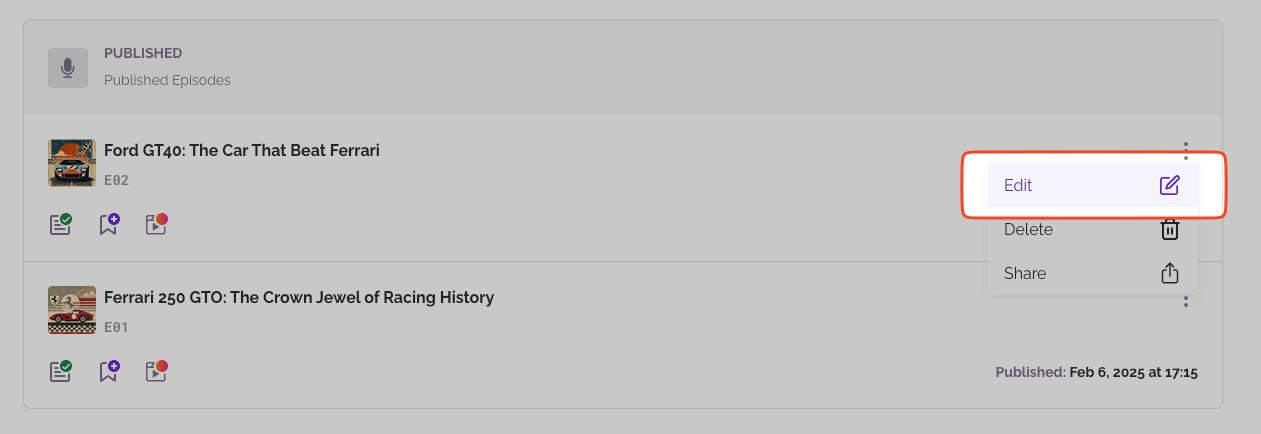
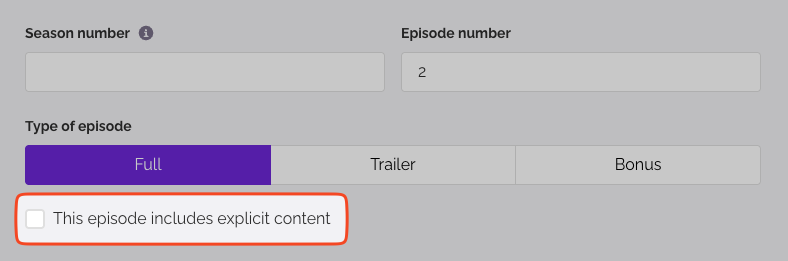
The full walkthrough for editing an episode is in How do I edit or delete a single podcast episode?
How the show-level rating is worked out
- If at least one published episode is marked as explicit, your show is marked as explicit.
- If none of them are, your show is marked as not explicit.
- Drafts and scheduled episodes do not count until they publish.
Important: One explicit episode marks the whole show as explicit. For your show to come out as not explicit, every published episode has to be set to No.
My show is marked as explicit and I did not set it that way
One of your published episodes is set to Yes. Open your episode list and look for the red Explicit label next to an episode title, then edit that episode and change the setting. The show-level rating updates the next time your feed is built.
Will the change reach Apple, Spotify and other apps?
Most podcast directories, including Apple Podcasts, Spotify, Amazon Music and Pandora, pull this straight from your RSS feed, so your update reaches them on their next check. Timing depends on each platform, usually a few hours.
Your AI disclosure works the same way, set per episode with the show-level value following from it. See Guidelines for labeling AI-generated content.
Was this article helpful?
That’s Great!
Thank you for your feedback
Sorry! We couldn't be helpful
Thank you for your feedback
Feedback sent
We appreciate your effort and will try to fix the article