When you connect Apple Podcasts to RSS.com, what we actually need from you is a small file called an API key. Apple generates it inside Apple Podcasts Connect, you bring it over to RSS.com once, and from that point on we can publish your premium subscription episodes and your video on Apple's side without you having to upload anything twice.
Here's how to get the key and where to add it.
One thing worth knowing before you start: the same API key works for both Apple Podcasts Subscriptions and video on Apple Podcasts. If you've already added a key to RSS.com for one of these features, you don't need to generate a new one for the other.
Generate the key in Apple Podcasts Connect
Sign in to Apple Podcasts Connect, choose Account from the top of the page, then select the Keys tab. Click the + icon next to Active, give the key a recognisable name (something like "RSS.com" works), and click Generate.
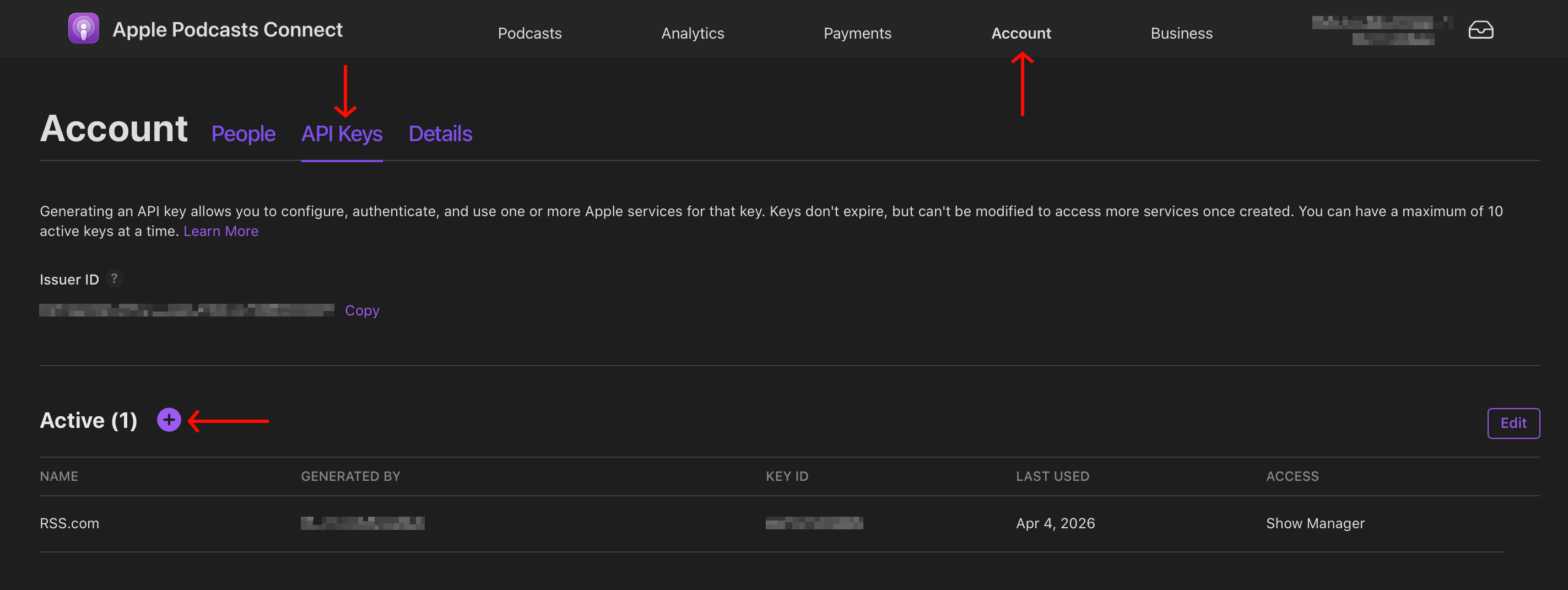
You'll need an Admin role on the account to do this. You can have up to 10 active keys at any time.
Download the key file
Once it's generated, click Download API Key to save the file to your computer. Two things to watch out for: don't rename the file, its filename contains your Issuer ID and Key ID, which we need on our side to make the connection work. And you can only download the key once. If you lose it, you'll have to revoke it inside Apple Podcasts Connect and generate a new one, so save a backup somewhere safe. The file itself will have a .p8 extension.
Add the key to RSS.com
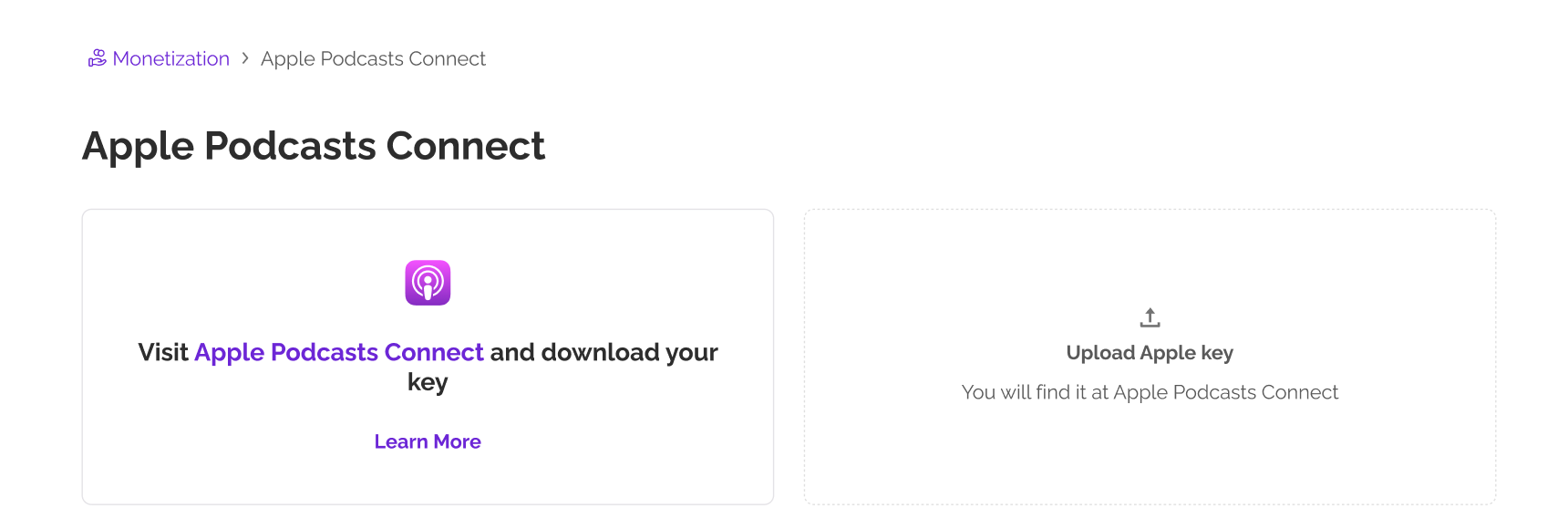
Sign in to your RSS.com dashboard, go to Monetization → Apple Podcasts Connect, and click Add API Key. Upload the .p8 file you just downloaded and that's it, the connection goes live immediately and you'll see Apple Podcasts listed as connected. If you host more than one show on RSS.com, the same key applies to your whole account; you don't need a separate one per show.
If your show isn't claimed on Apple Podcasts Connect yet
Right after the key, if your show isn't claimed on Apple Podcasts, before you can set up Subscriptions or Video, you'll be prompted to claim your show.
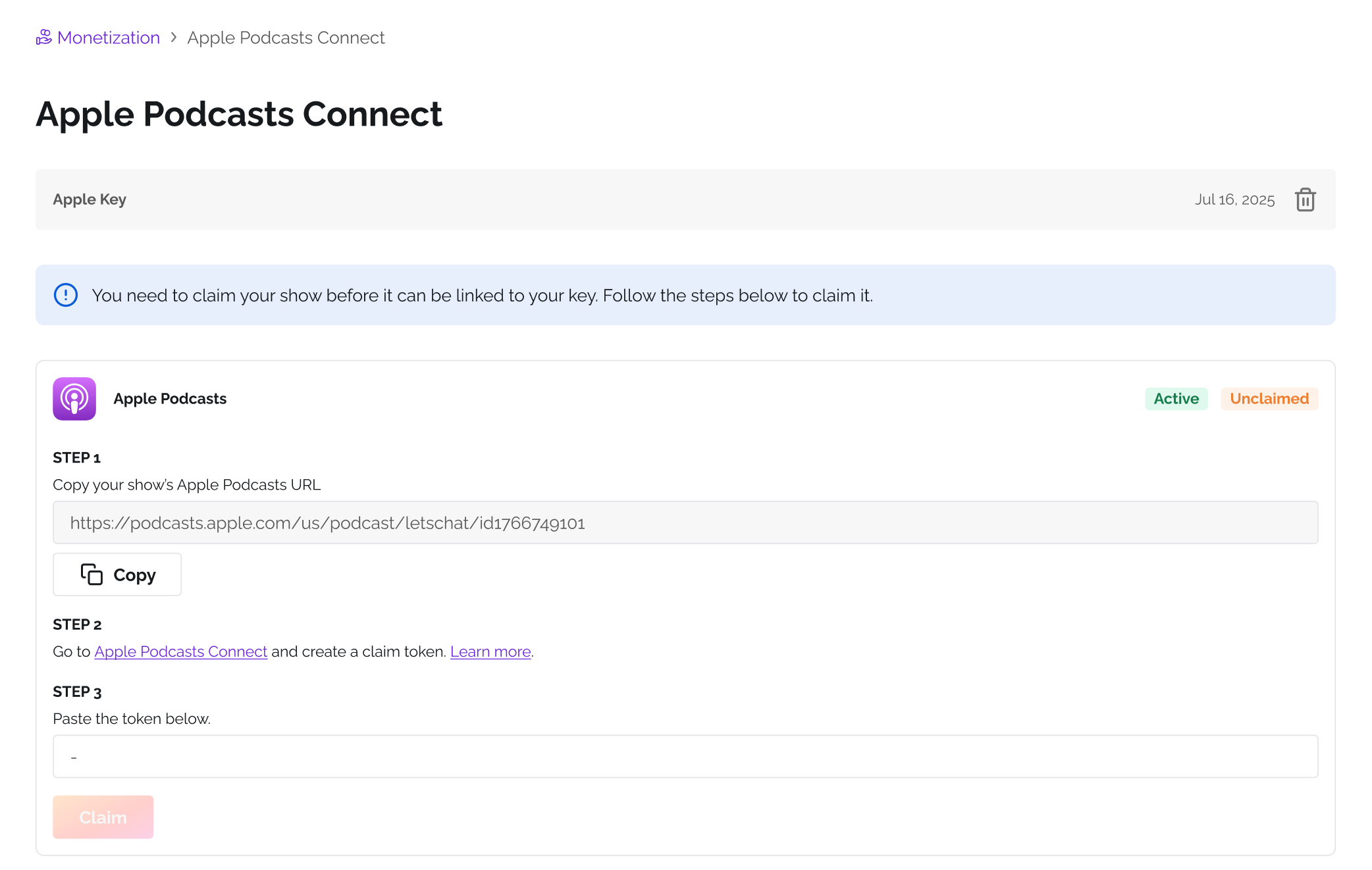
Check out How to claim your show on Apple Podcasts and follow the walkthrough from the dashboard.
With the key added, and the show claimed, you're ready to set up either How to enable Apple Podcasts Subscriptions or How to enable Apple Podcasts Video, depending on which feature you want to turn on first.
A few things worth knowing
We only get the access needed to publish on your behalf. We cannot see your listening analytics, your subscription reporting, your banking, or your tax information, all of that stays inside Apple Podcasts Connect.
If you ever want to disconnect, revoke the key from the Keys tab in Apple Podcasts Connect. Our access ends the moment you do.
If you switch hosts later, Apple recommends generating a separate API key for the new provider rather than reusing the one you gave us.
Was this article helpful?
That’s Great!
Thank you for your feedback
Sorry! We couldn't be helpful
Thank you for your feedback
Feedback sent
We appreciate your effort and will try to fix the article