Open your podcast, go to Settings, then Voicemail, and click Manage voicemails. Your messages are listed under Your voicemails, newest first. Click play on any of them.
We also email you each time a new voicemail arrives, with a link to your dashboard.
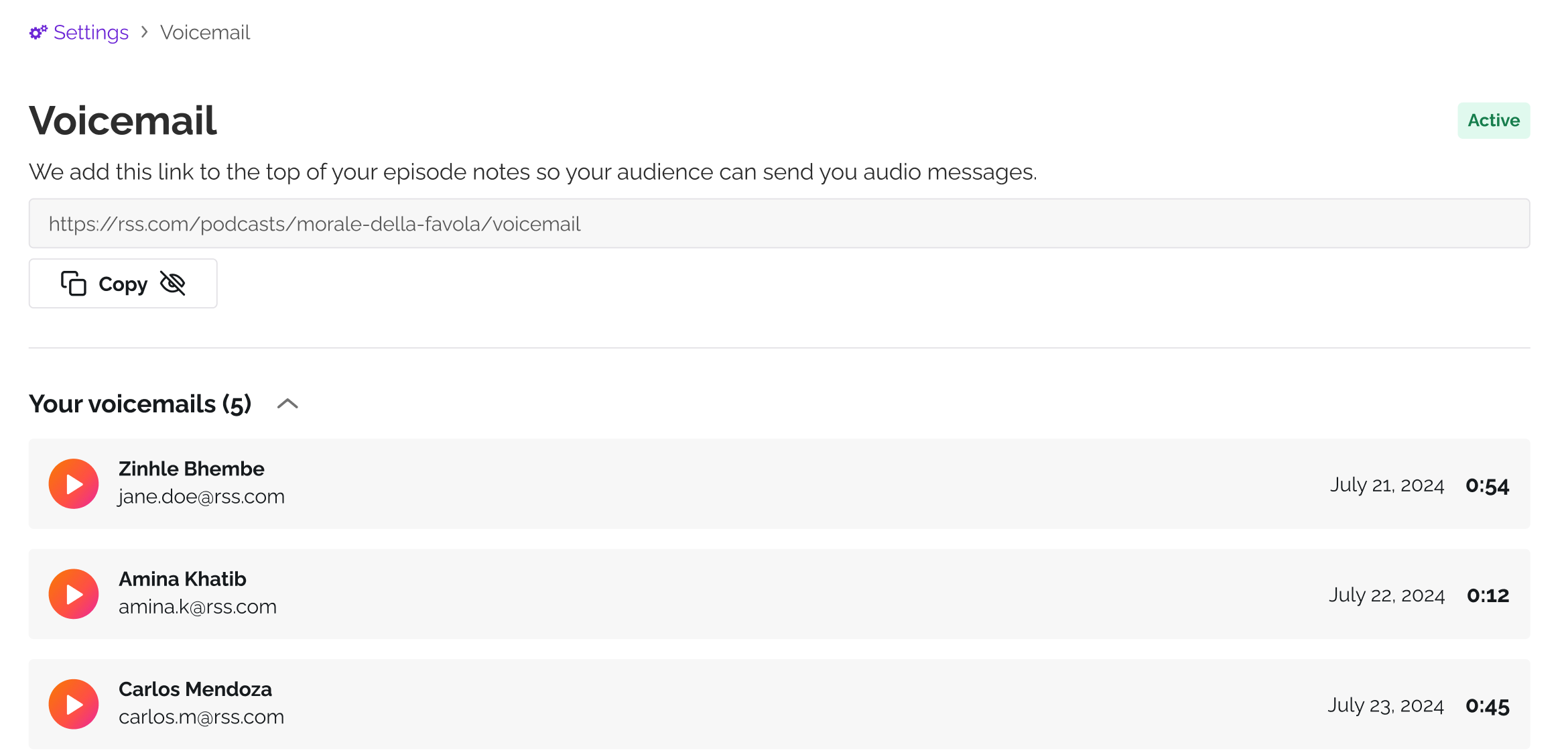
What you see for each message
- The name the listener gave, if they gave one.
- Their email address. We confirm it with a code before the message reaches you.
- The date it arrived.
- The length of the recording.
On the Free plan you can listen to one
Free includes one voicemail, the first one you received. The rest are kept and counted, so you can see how many are waiting for you. Move to Plus, Pro or Max and all of them open up, including the ones that came in while you were on Free. Nothing is deleted in the meantime.
See plans compared for what each plan adds, or how to upgrade your plan.
Answering a listener
Replies do not go through RSS.com. You have the sender's email address, so you can answer from your own inbox. Many podcasters play the message on the show instead and answer it there.
If the section is empty
Until someone sends you something, the page shows your link and nothing else. Share the link so your audience knows the door is open, there is nothing else to set up. See how to turn on voicemail and customize your invite.
If a voicemail you were emailed about is not in the list, check that voicemail is still active. Turning it off hides the messages you already have until you turn it back on. More in what is voicemail?
Was this article helpful?
That’s Great!
Thank you for your feedback
Sorry! We couldn't be helpful
Thank you for your feedback
Feedback sent
We appreciate your effort and will try to fix the article