Automatic Transcripts automatically generates a transcript every time you publish a new episode, no need to create or review it manually. Once activated, the feature runs in the background using the quality level you select.
Requirements
Your podcast must be on the Pro or Max plan. If you subscribed before our current plans, Podcast Networks includes it too. Compare the plans.
The episode must include at least the audio file for the feature to start.
The feature is visible to all users in Settings, but can only be activated on those plans.

How to Activate
Go to your podcast Settings tab
Find the Automatic Transcripts section
Click Activate
Once active, any new episode you publish will automatically generate a transcript.
Configuration Options
After activating, you can configure two settings:
I. Transcript Quality
Choose the AI quality level to use for all automatically generated transcripts. The options are the same ones available when generating a transcript manually per episode.

All new transcripts will use the selected quality level until you change it.
II. Automatic accept and publish
By default, every AI-generated transcript is automatically accepted and published, without manual review. It skips the review stage. This means that transcripts are accepted and published immediately without any review step.

If you want automatic-transcripts to behave as manual transcripts (this is: transcript saved as draft → requires manual review and acceptance before publishing) you may toggle off this feature.
Important: This setting applies broadly, not just to new episodes with Automatic Transcripts enabled. It also affects:
- Past episodes where you manually generate a new transcript.
- Any episode where you replace the audio file (which triggers a new transcript).
In short: if Auto-Accept is on, any transcript generated on your podcast, by any method, will publish without review.
Tip: We recommend leaving Auto-Accept off until you're confident in the quality level you've selected. Once a transcript is published, listeners and platforms can see it immediately.
Supported Languages
Automatic Transcripts currently supports 14 languages, you can see the full list here.
If your podcast is set to a language not on this list, the feature will not be available.
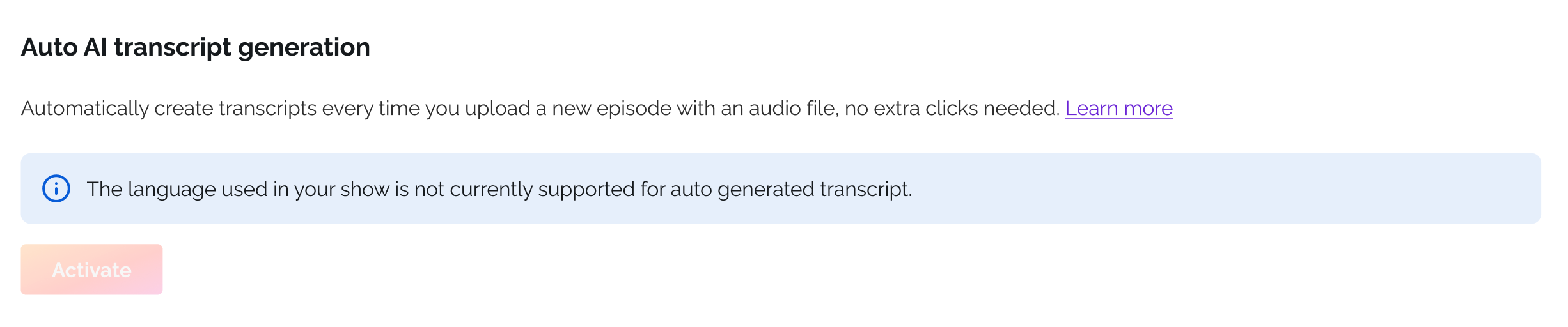
The feature can be re-enabled once you switch back to a supported language.
Was this article helpful?
That’s Great!
Thank you for your feedback
Sorry! We couldn't be helpful
Thank you for your feedback
Feedback sent
We appreciate your effort and will try to fix the article