You might still be unsure about how PAID works or how it could affect your podcast. A simple way to get started is by testing it in a low-impact setup, such as using a post-roll or enabling it on just one episode before rolling it out across your entire show.
If you’re concerned about ads interrupting your content, start with a post-roll. Post-roll ads play at the end of the episode and are generally considered the least intrusive. While they often generate lower value because some listeners drop off before the episode finishes, they can still perform well since many listeners allow the episode to end naturally and let the next one auto-play.
Testing with a post-roll lets you experiment safely, collect feedback from your audience, and understand how PAID fits your show, all while earning a bit of revenue.
Alternatively, you can also test any ad placement type, pre-roll, mid-roll, or post-roll, on just one episode to see how it performs. This is perfect if you want to explore how RSS.com’s PAID (programmatic ads) feature works, without affecting your entire podcast.
Here’s how you can safely test it on just one episode.
1. First of all, enable PAID for your show: Go to the Monetization section in your Dashboard and activate PAID.
2. Manage PAID and make sure to disable all automatic ad placements by turning off all automatic insertion points: Pre-Roll, Mid-Roll, and Post-Roll options. This ensures that ads won't be inserted automatically in any episode.
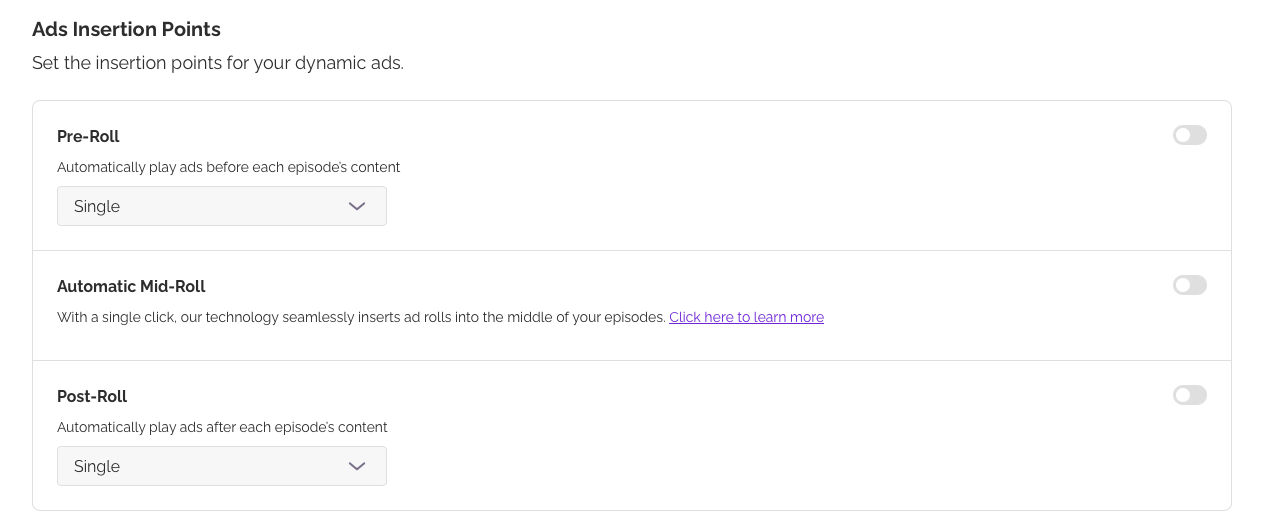
3. Add a manual mid-roll ad to one episode like we explain in this article.

4. Place an ad markers at your desired timestamp.
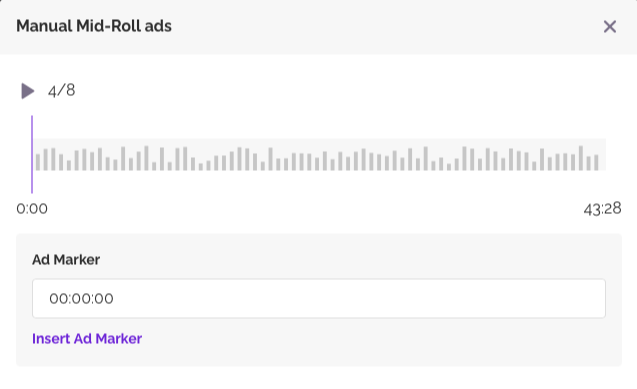
That’s it! Ads will only play on that specific episode and only at the spot you chose. No other episodes will be affected, and no automatic ads will run anywhere else.
This method is perfect if you want to get a feel for how ads will fit your content and try PAID without fully committing across your show.
You can remove the marker anytime or re-enable automatic placements whenever you’re ready.
Was this article helpful?
That’s Great!
Thank you for your feedback
Sorry! We couldn't be helpful
Thank you for your feedback
Feedback sent
We appreciate your effort and will try to fix the article