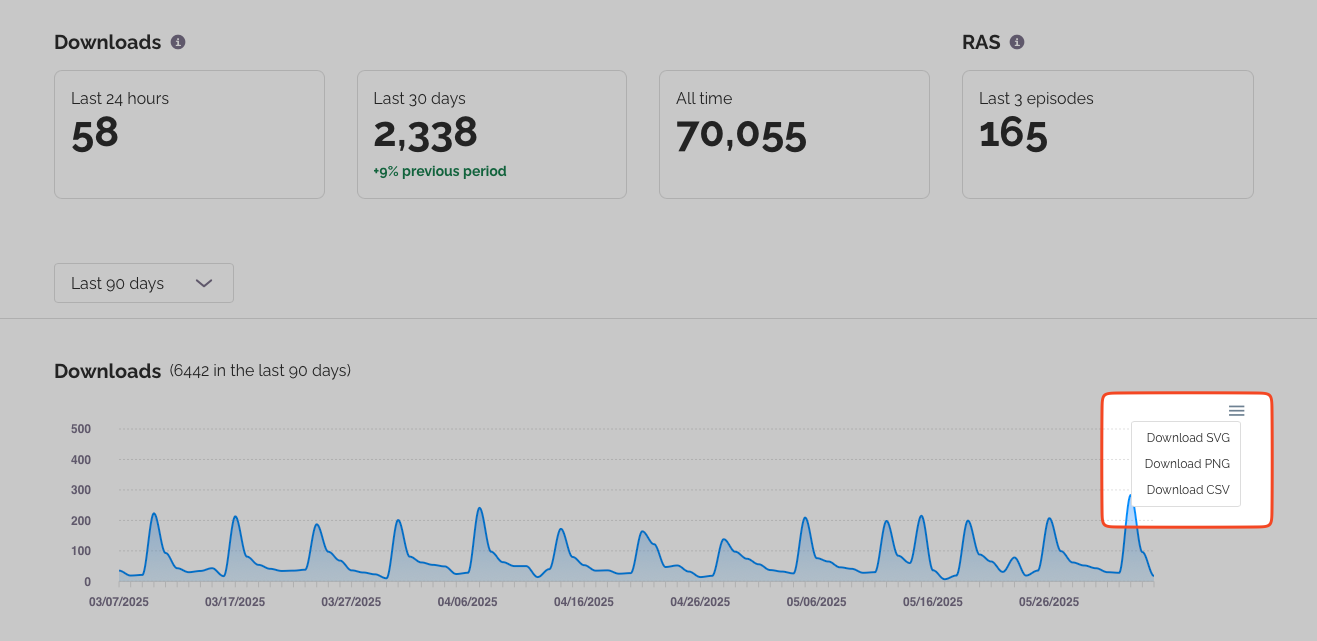
You can export your analytics data in multiple formats directly from each chart on your Dashboard. Just click on the menu icon next to the chart you’re interested in, and you’ll see options to download:
- CSV – to get the raw data in spreadsheet form
- SVG or PNG – to export the chart as an image, perfect for sharing or reports
Please note:
- Reports can currently only be downloaded one at a time
- Each export covers the date range you picked for that chart: up to 30 days on Free, 180 days on Plus, and up to all time on Pro and Max
- On the All Cities and All Referrers pages, scroll to the end of the list before you export, so the CSV includes every row
- If you need additional reporting or have specific questions, feel free to reach out to support@rss.com and we’ll be happy to help.
This makes it easy to save, analyze, and share your data however you need.
Was this article helpful?
That’s Great!
Thank you for your feedback
Sorry! We couldn't be helpful
Thank you for your feedback
Feedback sent
We appreciate your effort and will try to fix the article