Once your import to RSS.com is confirmed, set up a 301 redirect on Omny so your subscribers and every directory (Apple, Spotify, Amazon Music, and the rest) follow you to your new feed automatically.
Important: do this only after we've confirmed your import is complete. Redirecting too early points listeners at a feed that isn't ready yet.
- Log in to your Omny Studio account.
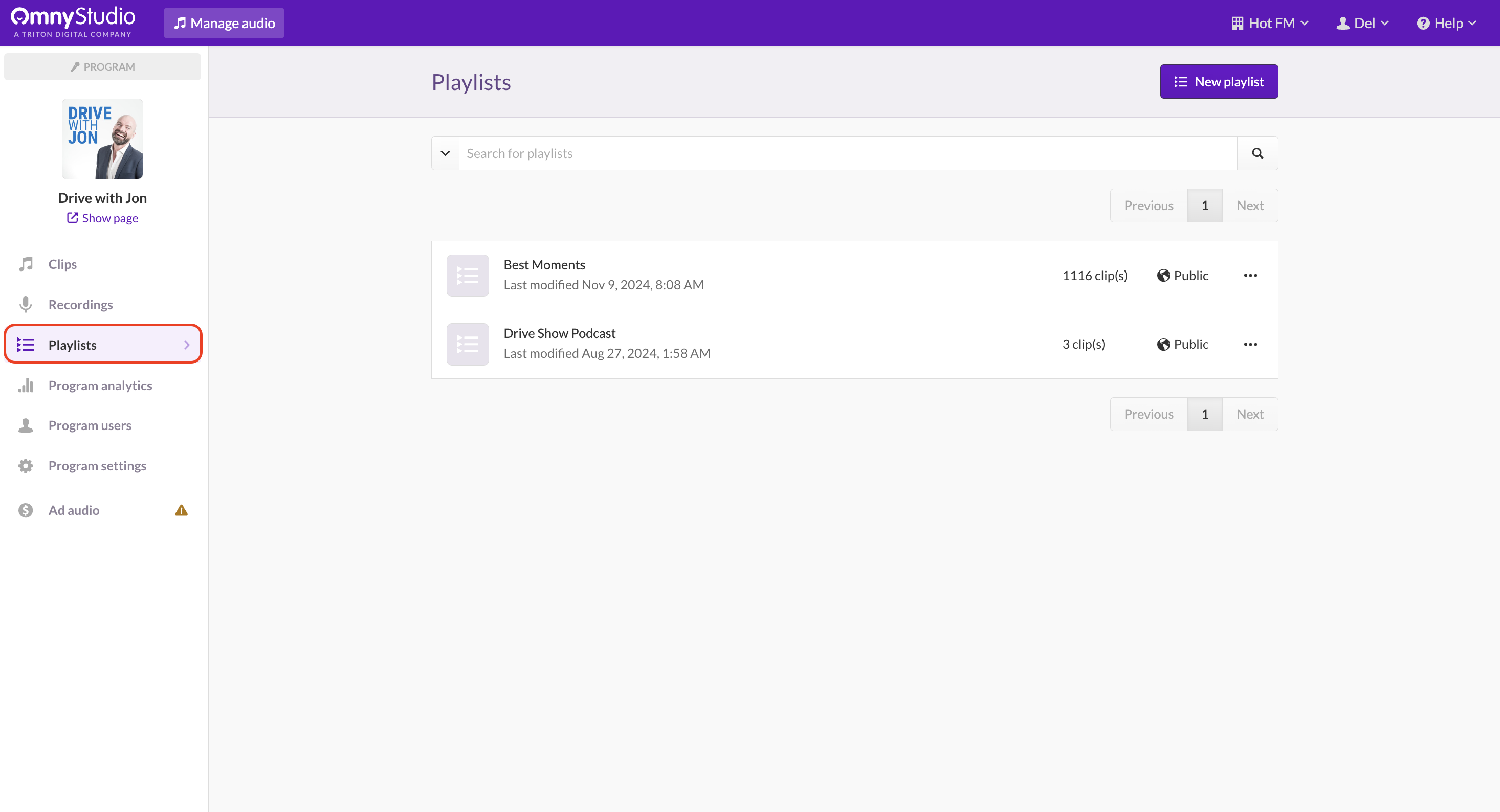
- Select the Playlist for the show you moved, then open the Details tab.
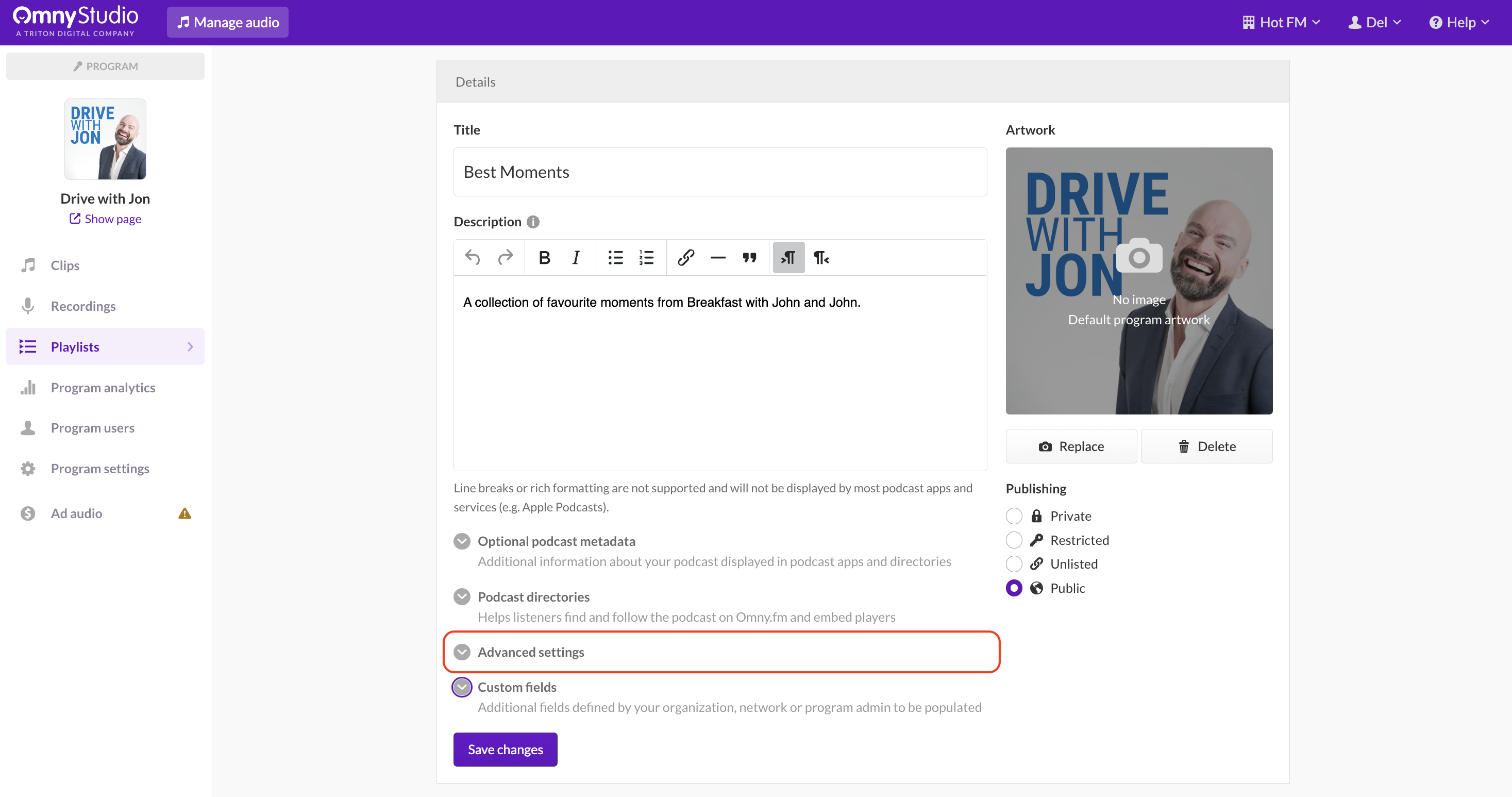
- Open Advanced Settings.
- Check Podcast RSS Permanent Redirect.
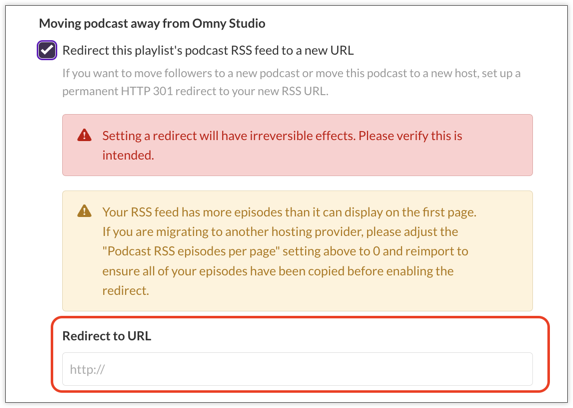
- In the box, paste your new RSS.com feed URL. It looks like
https://media.rss.com/your-show-name/feed.xml. - Click Save Changes.
The redirect goes live within a few minutes. Directories pick up the change the next time they read your feed, usually within 24 hours.
Keep your Omny account active for at least 4 weeks so every subscriber and app has time to follow the redirect. To check it's working, paste your old Omny feed URL into a browser and press Enter. If it lands on your RSS.com feed URL, the redirect is working.
New here? Start with How do I import my podcast from a different hosting provider? and Important steps to do before redirecting a podcast to RSS.com.
Was this article helpful?
That’s Great!
Thank you for your feedback
Sorry! We couldn't be helpful
Thank you for your feedback
Feedback sent
We appreciate your effort and will try to fix the article