Sometimes you might want an episode to appear with a date before today, for example when you upload older recordings. At RSS.com, you can publish an episode with a past date. You pick the date when you first publish a draft. The date of an episode that is already published can't be changed.
This feature ensures your episode shows the correct date on your RSS feed, public page, and podcast apps.
How to Enable Publishing in the Past
Publishing an episode in the past is an advanced option (Power-Ups) and must first be enabled through your show’s settings.
- Go to your Dashboard's Settings.
- Scroll down to Power-Ups (previously called “Podcasting 2.0 features”), click Enable Power-Ups, then Enable All Power-Ups.
Note: Power-Ups unlock extra features designed for experienced podcasters.
How to Publish an Episode with a Past Date
Once Power-Ups are enabled, create a new episode or edit a draft.
You'll now see the button has a dropdown that reveals the option to "Publish in the Past"
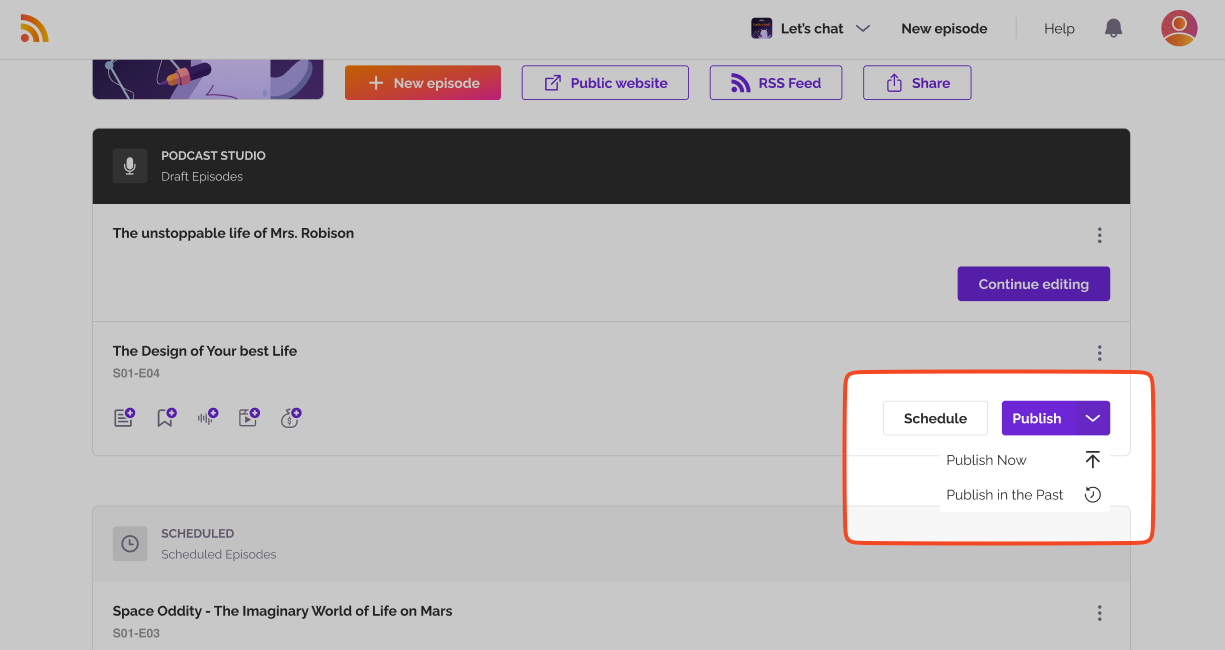
Choose any date — including a date in the past — from the date picker, and when you click "Publish" your episode will go live immediately with the selected past date.
Your episode will now display the earlier date everywhere your podcast is distributed.
Why Would I Want to Publish in the Past?
Publishing an episode with a past date is helpful if:
- You’re catching up on uploading previously recorded shows
- You want your episodes listed in the correct chronological order
Important: a past-dated episode reaches the podcast apps like any other episode. Whether listeners get it as new depends on the app. Apple Podcasts does not treat an episode dated more than seven days ago as new, so it is not downloaded automatically for followers.
Was this article helpful?
That’s Great!
Thank you for your feedback
Sorry! We couldn't be helpful
Thank you for your feedback
Feedback sent
We appreciate your effort and will try to fix the article