If you have your own website and you want your followers to be able to access it easily, we invite you to use our "Custom Website" feature. It is available on every plan, Free included.
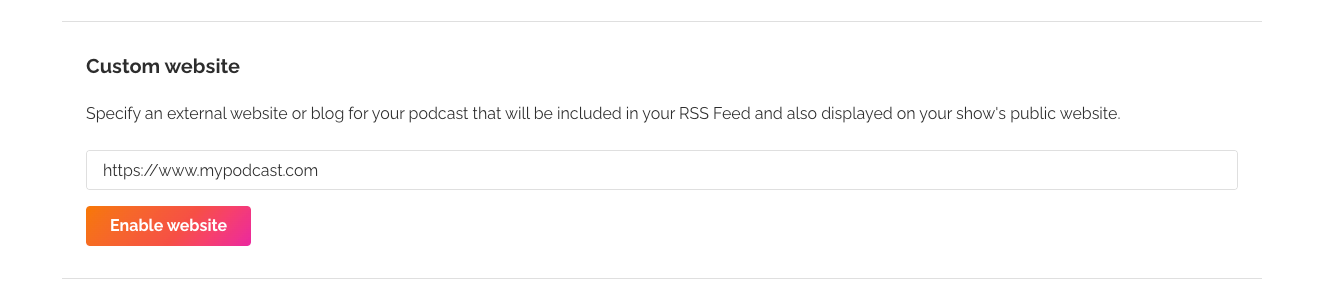
Just go to the "Settings" tab inside your dashboard and scroll down to the "Custom Website" section and click on the Activate button.

Paste the URL of your website and click on "Enable Website".
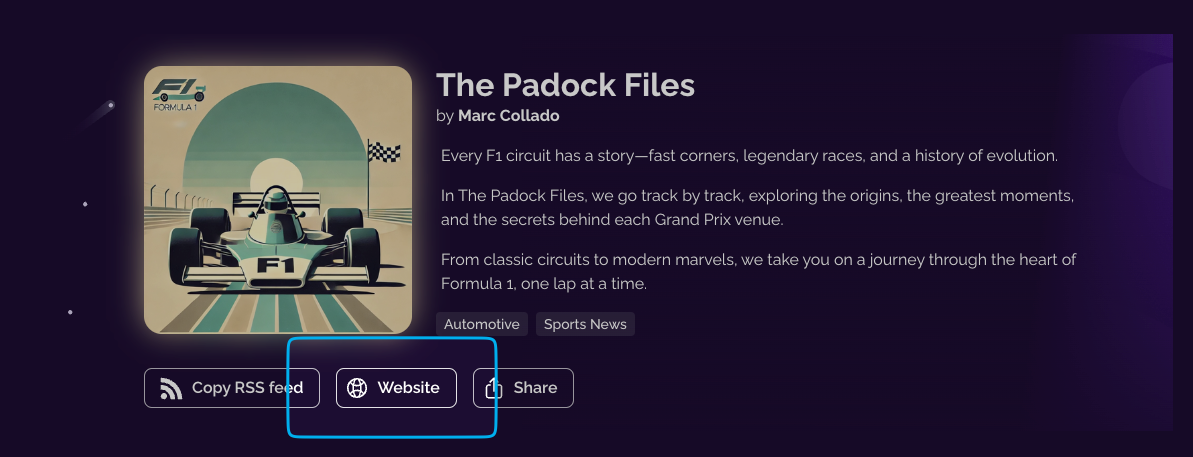
✅ Done! The custom website information has been included into your RSS.com Feed and a new button has also been enabled on your podcast website.
Your followers will be able to easily access it:
Important: Not every podcast app shows this link. Apple Podcasts shows it on your show page.
Related: Your free podcast website · How to use the embedded player? · How to redirect your custom domain to your RSS.com podcast website
Was this article helpful?
That’s Great!
Thank you for your feedback
Sorry! We couldn't be helpful
Thank you for your feedback
Feedback sent
We appreciate your effort and will try to fix the article