If you want to redirect your podcast from Spreaker.com to RSS.com please follow these steps:
- Navigate to your Spreaker dashboard: https://www.spreaker.com/cms/shows
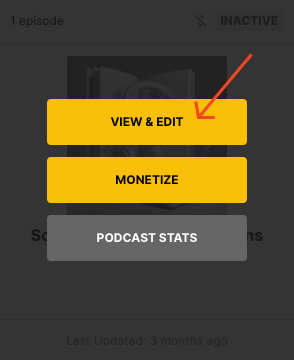
- Select the Show you want to import and click "View and Edit"
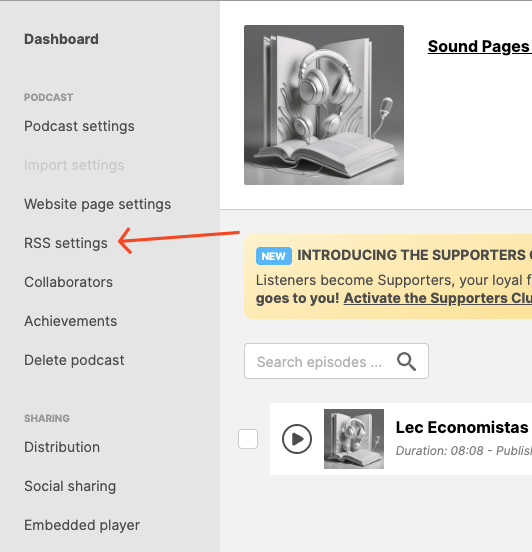
3. Select the menu "RSS settings"
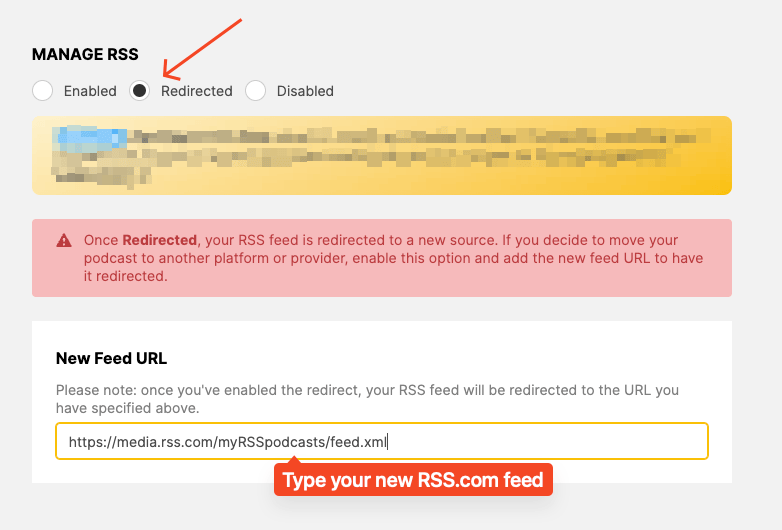
4. Scroll down to "Manage RSS" and inside the field "New feed URL" copy paste your RSS.com Feed URL. If you are not sure what is your Podcast Feed URL please read this tutorial.
Was this article helpful?
That’s Great!
Thank you for your feedback
Sorry! We couldn't be helpful
Thank you for your feedback
Feedback sent
We appreciate your effort and will try to fix the article